

How multiple reviewers’ scores combine
How Braintrust resolves multiple reviewers’ scores depends on the score type:-
Scores that can be averaged: Continuous scores and categorical scores resolve to a numeric value, so Braintrust averages them automatically on the parent span. In the review panel, each score shows its average as a percentage. Hover over the percentage to see detailed breakdowns: Your reviews in this trace, all reviewer scores for this span, and scores across all spans in the trace.
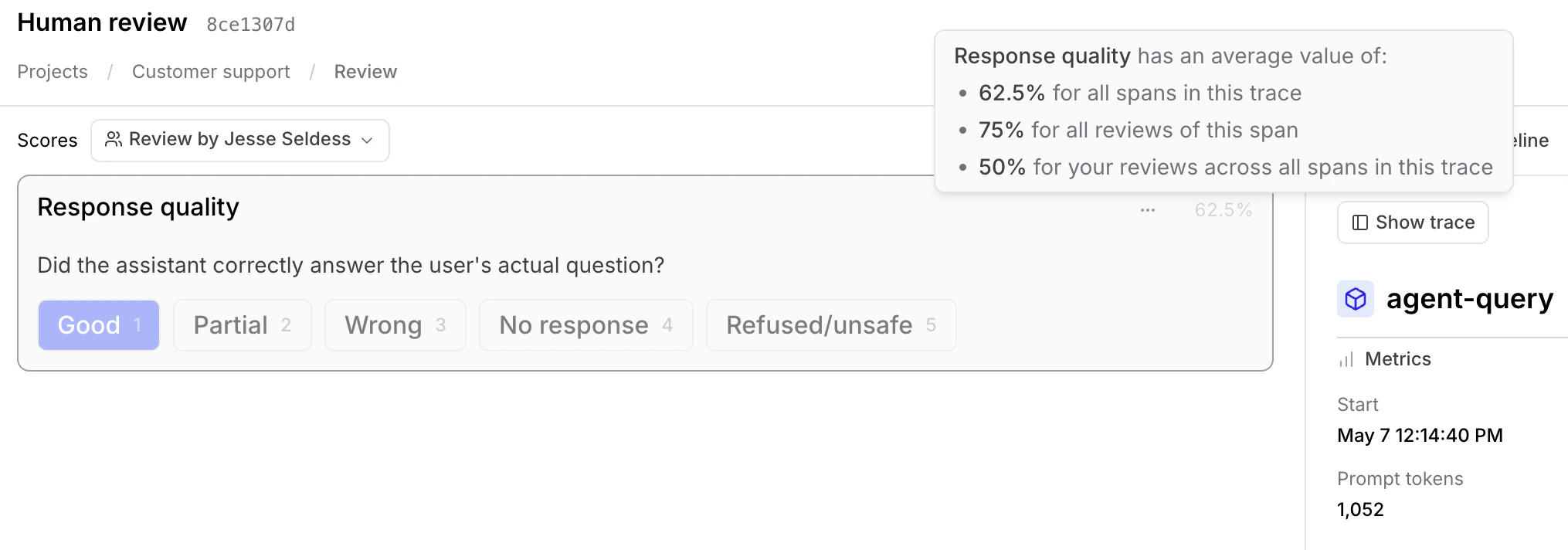
-
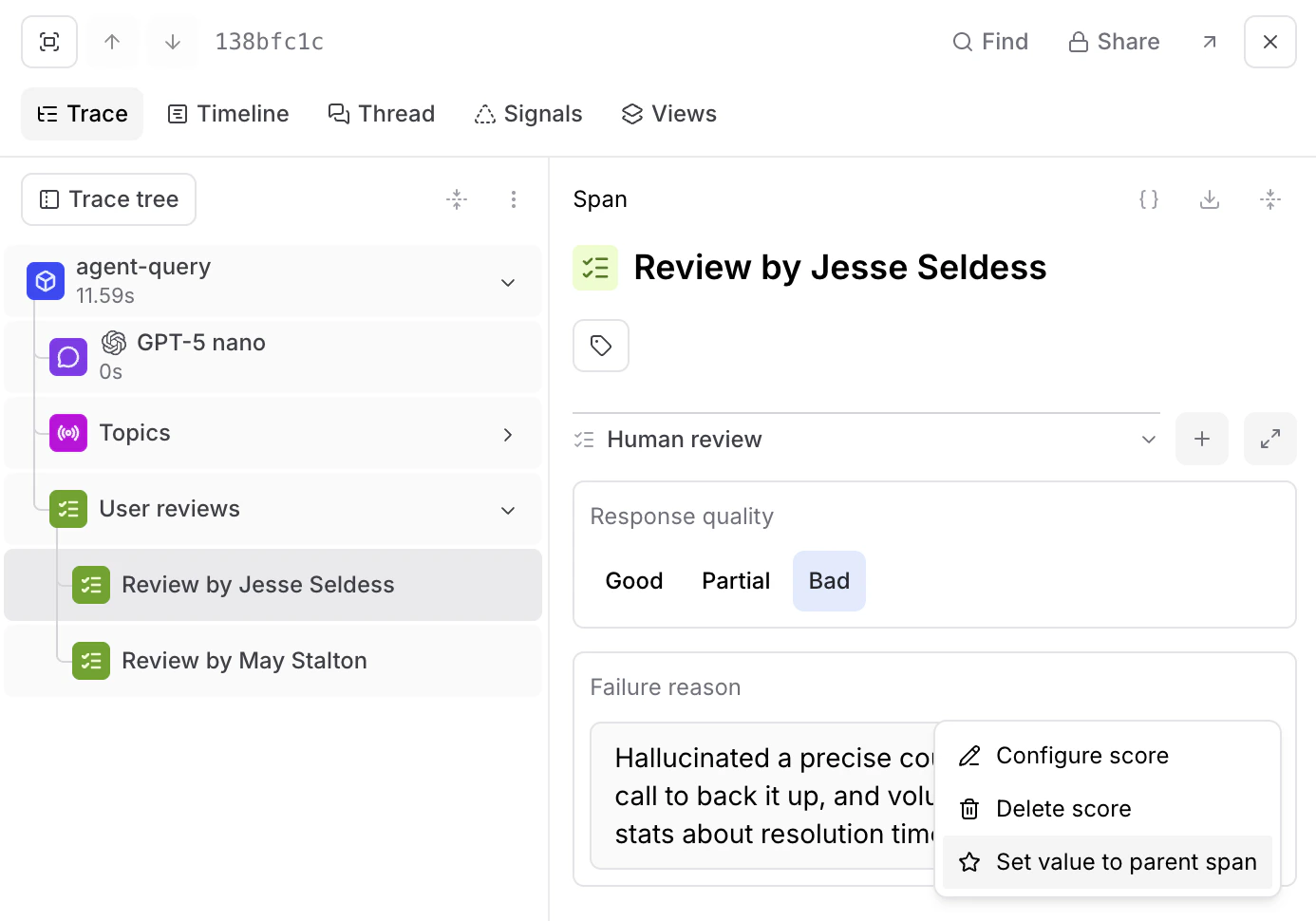
Scores that can’t be averaged: Free-form text scores and categorical scores that write to expected output don’t resolve to a numeric value, so there’s no average to compute. To choose which reviewer’s value becomes the parent span’s value, open the score’s options menu and select Set as base span value. On dataset rows, the same action reads Set as root value, and it’s available on dataset reviews as well. This option is available wherever an individual reviewer’s score is shown: in the review panel, or in the trace when you select that reviewer’s human review span.
What reviewers see while scoring
In review mode, a reviewer opens a row they haven’t scored yet with a blank form rather than the parent span’s current values, so their judgment isn’t anchored to what other reviewers recorded. Reopening a row they already scored loads their own review back. Until a reviewer fills in every score visible to them, Braintrust also hides other reviewers’ score values, review comments, aggregate percentages, reviewer summaries, the Review spans dropdown, and review spans in the trace tree. All of it appears once their own scores are complete. Reviewers who have theUpdate permission on the project are exempt. They see peer scores and aggregates from the start.
This is a display rule in review mode, not an access control boundary. Peer scores and averages stay visible elsewhere, including the score columns in the logs and experiment tables and the trace view outside review mode. To control who can read scores, use project permissions.
Blind reviews
Blind reviews is a project setting that makes the hiding permanent. Reviewers without theUpdate permission never see peer score values, review comments, aggregate percentages, reviewer summaries, or review spans for a row, including after they finish their own scores. Use it when reviewer independence has to hold for an entire review, such as measuring agreement between annotators.
To turn it on, see Enable blind reviews.
Automatic review completion
When Require all scores is on, a row’s review completes automatically once every assigned reviewer fills in all their visible scores. Manual completion is disabled for those rows while the setting is on, and automatic completion applies only to rows that have at least one assigned reviewer. To turn it on, see Require all scores.Switch between reviewers
A row can have scores from multiple reviewers. To move between them without hunting through the trace tree:- Go to Review and open a row in review mode (see Score traces and datasets for entry points). The scores panel appears to the left of the trace.
- In the scores panel header, open the Review spans dropdown.
- Select Review by [reviewer] to load that reviewer’s scores, or select Base span to return to the parent span’s own scores.
Next steps
- Manage review work to assign and track review across your team
- Score traces and datasets in review mode